Templates
Edit, duplicate or delete a template
Change, copy or remove a template without touching the requests made from it.
Last updated · Facts checked
On the Templates page, open a template's ⋯ menu and choose Edit, Duplicate or Delete.
Editing or deleting a template never changes requests you've already created from it. Each request keeps its own copy of the checklist.
Edit a template
-
Open it
On the Templates page, choose Edit from the template's ⋯ menu.
-
Make your changes
Change the Name, Description, Icon, Colour or the Checklist, as when you created it.
-
Save
Select Save changes. The heading shows when it was last saved.
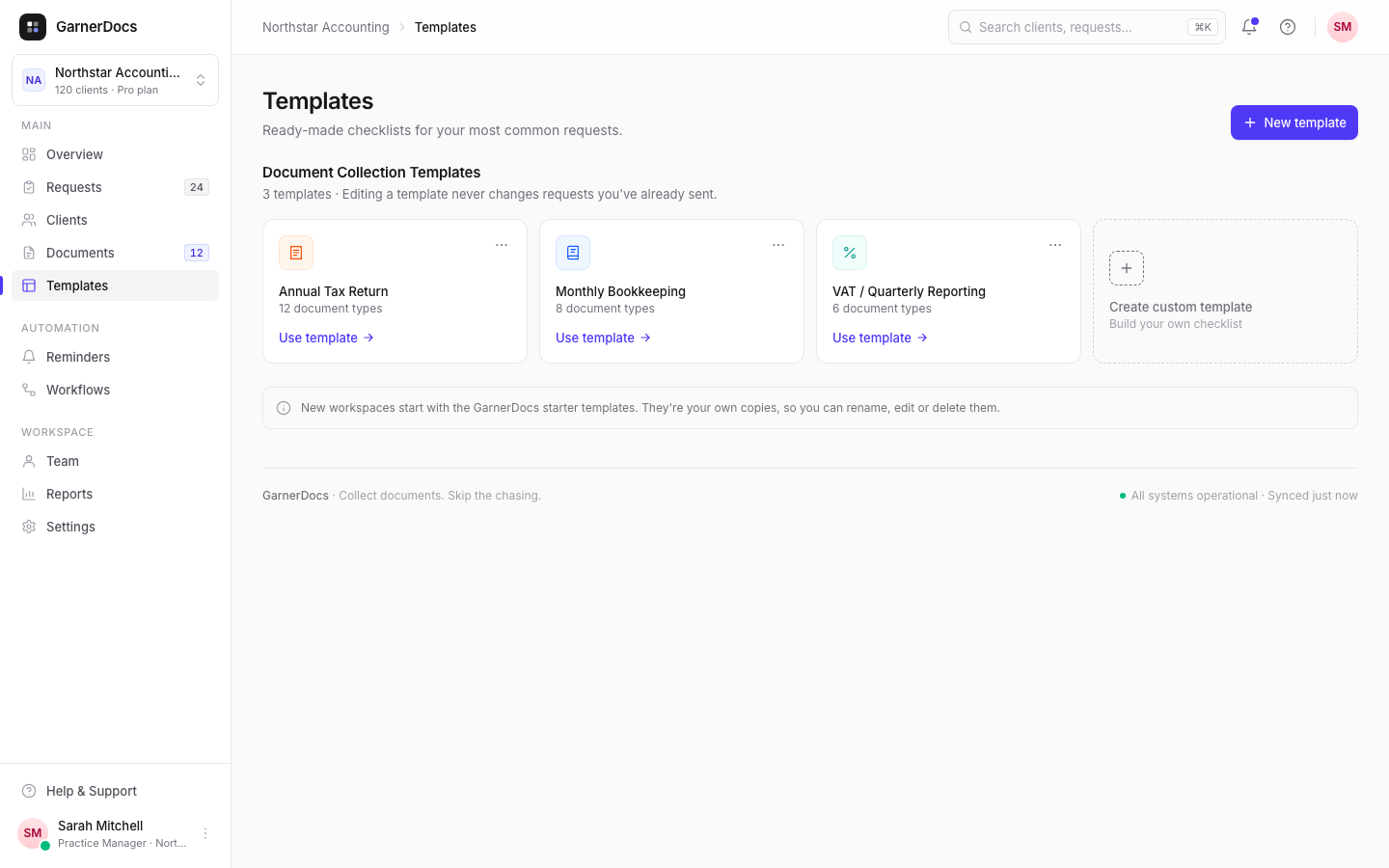
Duplicate a template
Choose Duplicate from the ⋯ menu. GarnerDocs adds a copy named "… (copy)" with the same description, icon, colour and checklist. Edit the copy to make a variation, for example one checklist for individuals and another for businesses, without touching the original.
Delete a template
Choose Delete from the ⋯ menu, or select Delete template at the bottom of the editor, then confirm. The template is removed from your library and can't be restored.
Only owners and admins can delete templates. Members don't see the option.
Templates and workflows
A recurring collection workflow creates its requests from a template each time it runs, so:
- Edits to the template show up in the requests the workflow creates from then on.
- If you delete the template, the workflow's next run fails with "The template this workflow uses was deleted". Edit the workflow to choose another template, then retry the run.
Good to know
- Everyone on your team can edit and duplicate templates.
- Starter templates are your own copies, so you can edit, duplicate or delete them like any other.