Workflows
What workflows do
The six workflow types, who manages them, and how they fit with your usual notifications.
Last updated · Facts checked
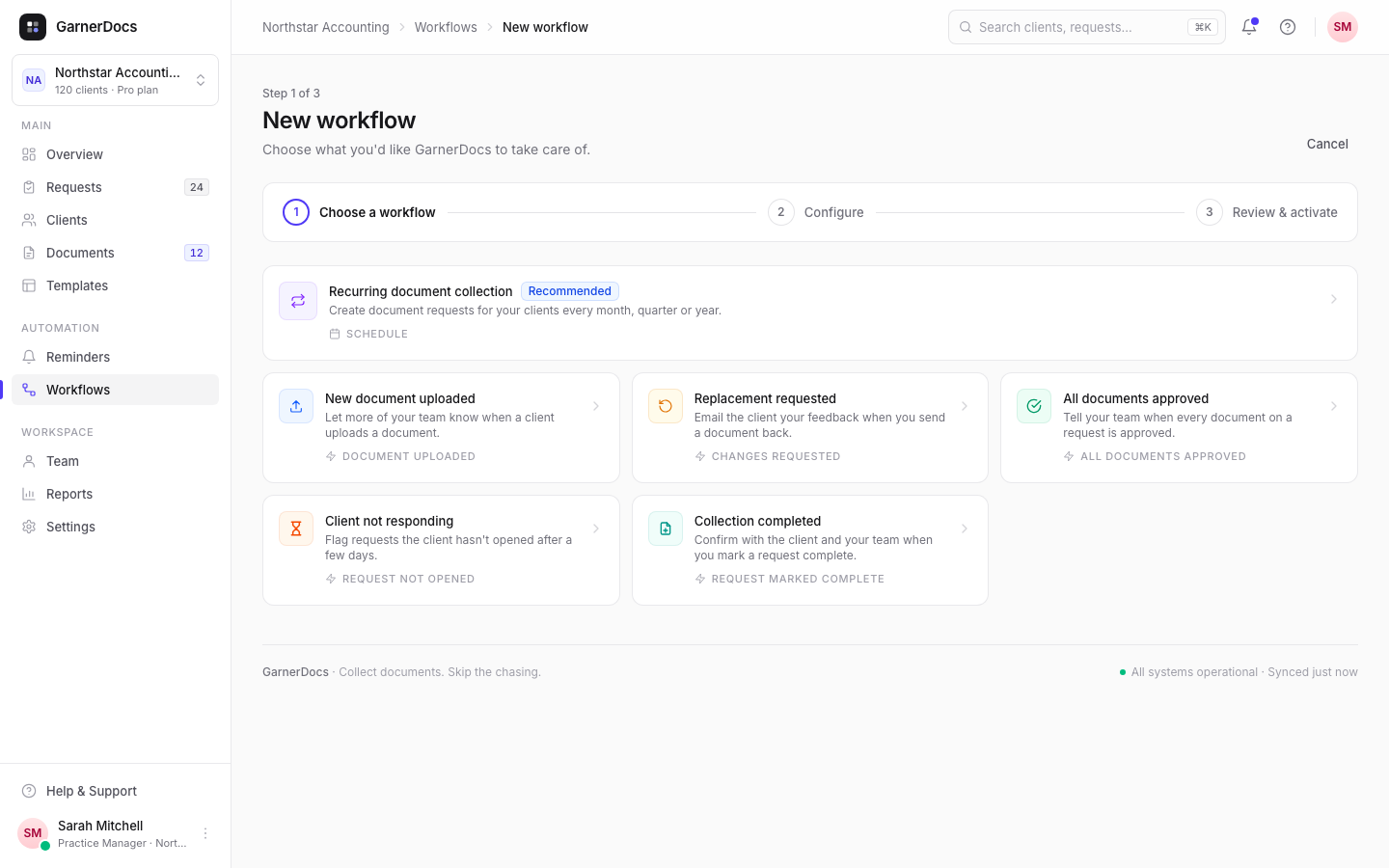
Workflows take care of jobs you'd otherwise do by hand: they create document requests on a schedule, or tell the right people when something happens on a request. You choose from six ready-made workflows. There's no free-form builder.
Who can do what
Owners and admins create, edit, pause, resume, delete and retry workflows. Everyone on the team can see them and their runs. Roles and permissions
The six workflows
| Workflow | When it runs | What it does |
|---|---|---|
| Recurring document collection | On a schedule: monthly, quarterly or annually, at 08:00 | Creates a request from a template for each of your chosen clients, then sends it or saves it as a draft. |
| New document uploaded | A client uploads a document | Tells more of your team, in-app, by email or both. |
| Replacement requested | You send a document back | Emails the client your feedback with a link to their upload page. |
| All documents approved | Every document on a request is approved | Tells more of your team. |
| Client not responding | A request hasn't been opened a set number of days after it was sent | Flags it to your team. |
| Collection completed | Someone on your team marks a request complete | Emails the client a confirmation, tells your team, or both. |
To set one up, select Workflows in the sidebar, under Automation, then New workflow. Each one has three steps: Choose a workflow, Configure and Review & activate.
Your usual notifications don't change
GarnerDocs already tells the request's assignee about uploads and completed requests (or owners and admins when nobody is assigned). Workflows add people on top of that. Anyone who already hears about something is skipped, so nobody gets the same notification twice.
You can have one Replacement requested workflow and one Collection completed workflow, so a client never gets the same email twice. The card shows Already set up once you have one.
Good to know
- Event workflows act on every request in your workspace, not only the ones you look after.
- Activating a workflow doesn't run it straight away. A recurring workflow first runs at its next scheduled time. Event workflows run the next time the event happens.
- Every run is logged on the workflow's page. See Pause, retry and see run history.
Related articles
- Set up recurring document collection
- Workflows that run when something happens
- Pause, retry and see run history
- Roles and permissions