Reviewing documents
Review and approve uploads
Find new uploads, preview each file and approve it.
Last updated · Facts checked
Open the file from the request page or the Documents page, check it, then select Approve. Your client sees the document as approved, and reminders stop asking for it.
Where new uploads appear
- Overview: a note under the heading says how many documents are waiting for review, the Pending review figure counts them, and Needs your attention lists the requests with a Needs review badge.
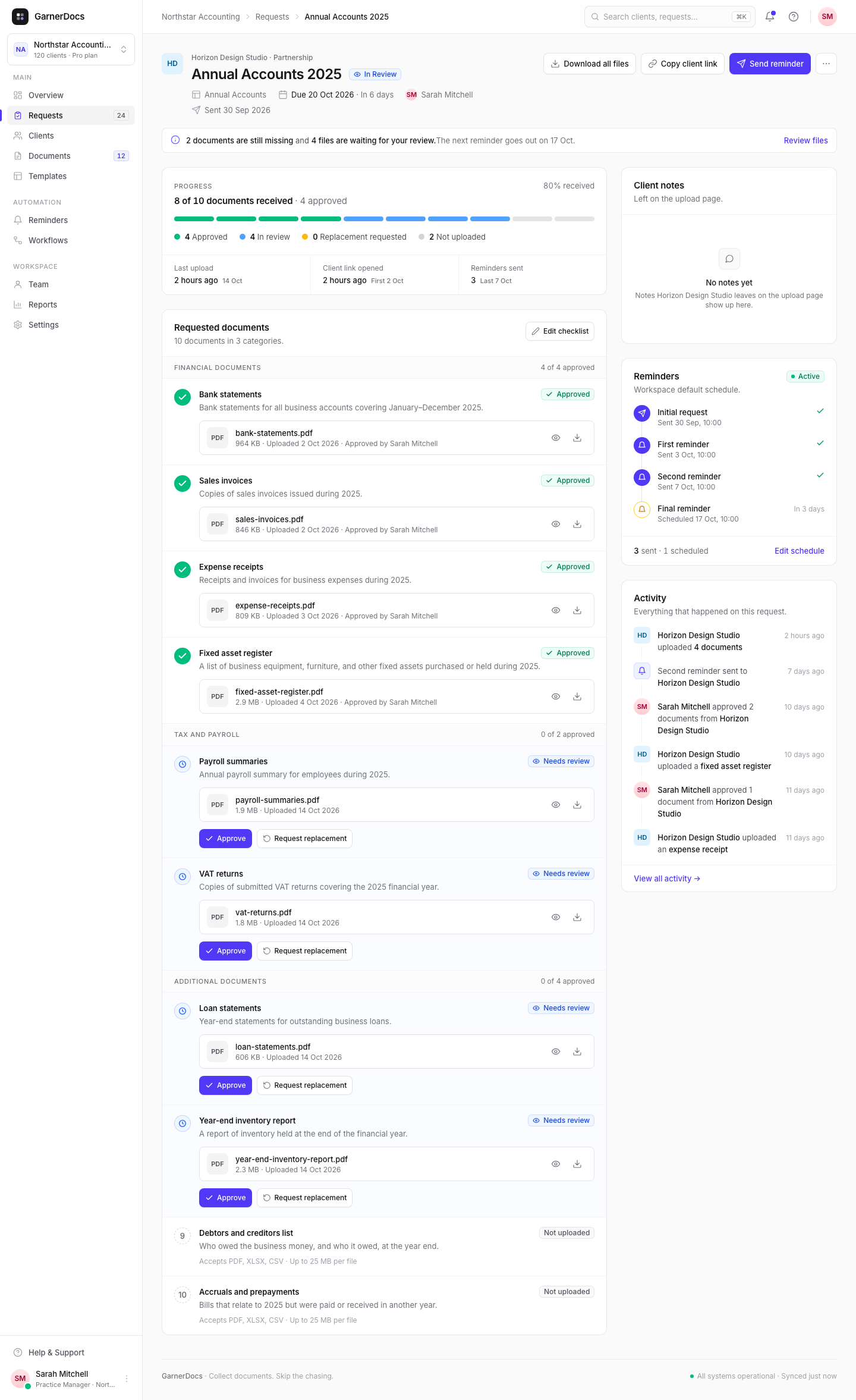
- The request page: a note at the top says how many files are waiting, with a Review files link. Documents with new files show Needs review.
- Documents: the Awaiting review tab lists every file waiting for review across your clients, newest first. The count next to Documents in the sidebar shows how many there are.
- The bell: the request's assignee gets a notification when a client uploads. If nobody is assigned, the owner and admins get it.
Steps
-
Open the request
Select the notification, a row in Needs your attention, or the request on the Requests page.
-
Preview the file
Select the eye icon next to the file. PDFs, JPGs and PNGs open in a preview panel; other types show a Download button.
-
Approve it
Select Approve, on the document or in the preview panel. On the request page, Approve accepts every file waiting under that document. You'll see "… approved".
If the file isn't right, choose Request replacement instead. See Ask a client for a replacement file.
What happens next
- The document shows Approved on the request page and on your client's upload page.
- Reminders only mention documents that are still outstanding, so an approved one drops out of the next reminder.
- When every document on the request is approved, the request completes on its own and its remaining reminders are cancelled.
When a client doesn't have a document
Clients can tap I don't have this under any document they haven't sent, and say why. The document shows Needs review, with their reason in a box under it. Reminders stop asking for it while you decide.
- Accept: the document shows Not needed and counts as done. If it was the last one, the request completes.
- Ask anyway: write a note, for example where they can get a copy. The document goes back to your client marked Still needed, and they're emailed unless you untick Email … now.
If the client uploads the file after all, it replaces their reason and you review the file as usual.
You hear about it like a new upload: a bell notification, and an email unless New uploads is Off. The email names the document but not the reason. Open the request to read it.
Emails about new uploads
Choose how you hear about new uploads in Settings → Notifications → New uploads:
- Instantly: one email per request, sent once the client has stopped uploading for a couple of minutes.
- Daily digest: one email at 08:00 in your workspace's timezone with the uploads from the last day.
- Off: bell notifications only.
These emails cover requests assigned to you, or every request if you're an owner or admin and nobody is assigned. The bell notifications are always on.
Good to know
- Anyone on your team can review files on any request.