Reviewing documents
Ask a client for a replacement file
Send a file back with a note, and your client uploads a new one with the same link.
Last updated · Facts checked
Select Request replacement on the document, write a note saying what needs to change, and send it. Your client sees your note next to that document and can upload a new file with their existing link.
Steps
-
Find the file
Open the request, or find the file on the Documents page. The option appears while a file is waiting for review.
-
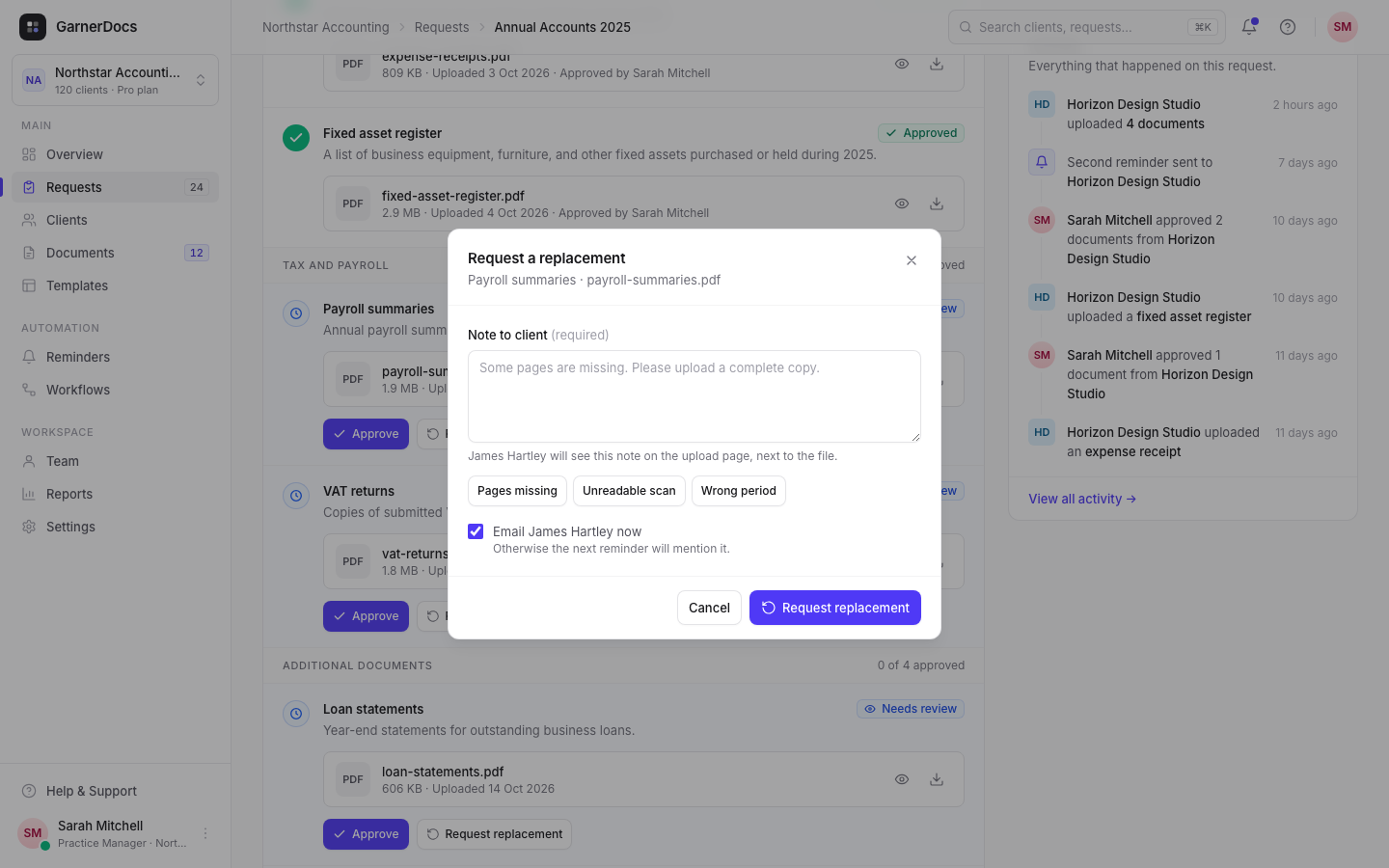
Select Request replacement
Use the button under the document, the button in the preview panel, or Request replacement in the file's ⋯ menu on the Documents page.
-
Write your note
Type what's wrong in Note to client (up to 2,000 characters), or pick a common reason: Pages missing, Unreadable scan or Wrong period. Edit the text as you like.
-
Choose whether to email now
Email your client's contact now is ticked. Leave it ticked to email them straight away, or untick it and the next reminder will mention it.
-
Send it
Select Request replacement. You'll see "Replacement requested for …".
What happens next
- On the upload page, the document shows Needs replacement with your name, the date and your note in quotes. The old file is crossed out and marked "Not accepted", with an Upload replacement area under it.
- By email (if you left the box ticked), your client gets "[your workspace name] needs a new copy of [document]" with your note and an Upload replacement button that opens their link.
- On the request page, the document shows Replacement requested and "Waiting for [client] to upload a replacement."
- Reminders keep chasing the document, because it counts as outstanding until a new file arrives.
When the new file arrives, it's waiting for review again, like any upload.
The old version is kept
Files you send back aren't deleted. They're listed under History on the document and under Versions in the preview panel, and you can still download them until the request's files are deleted at the end of the retention period. A ZIP of all files puts them in an _earlier versions folder.
Good to know
- Sending back a document sends back every current file under it, with the same note.
- You can only ask for replacements on active requests.
- If your workspace has a Replacement requested workflow turned on, the workflow sends the email to your client instead, so they still get exactly one.