Team
Invite your team
Send an invitation by email and choose their role and job title.
Last updated · Facts checked
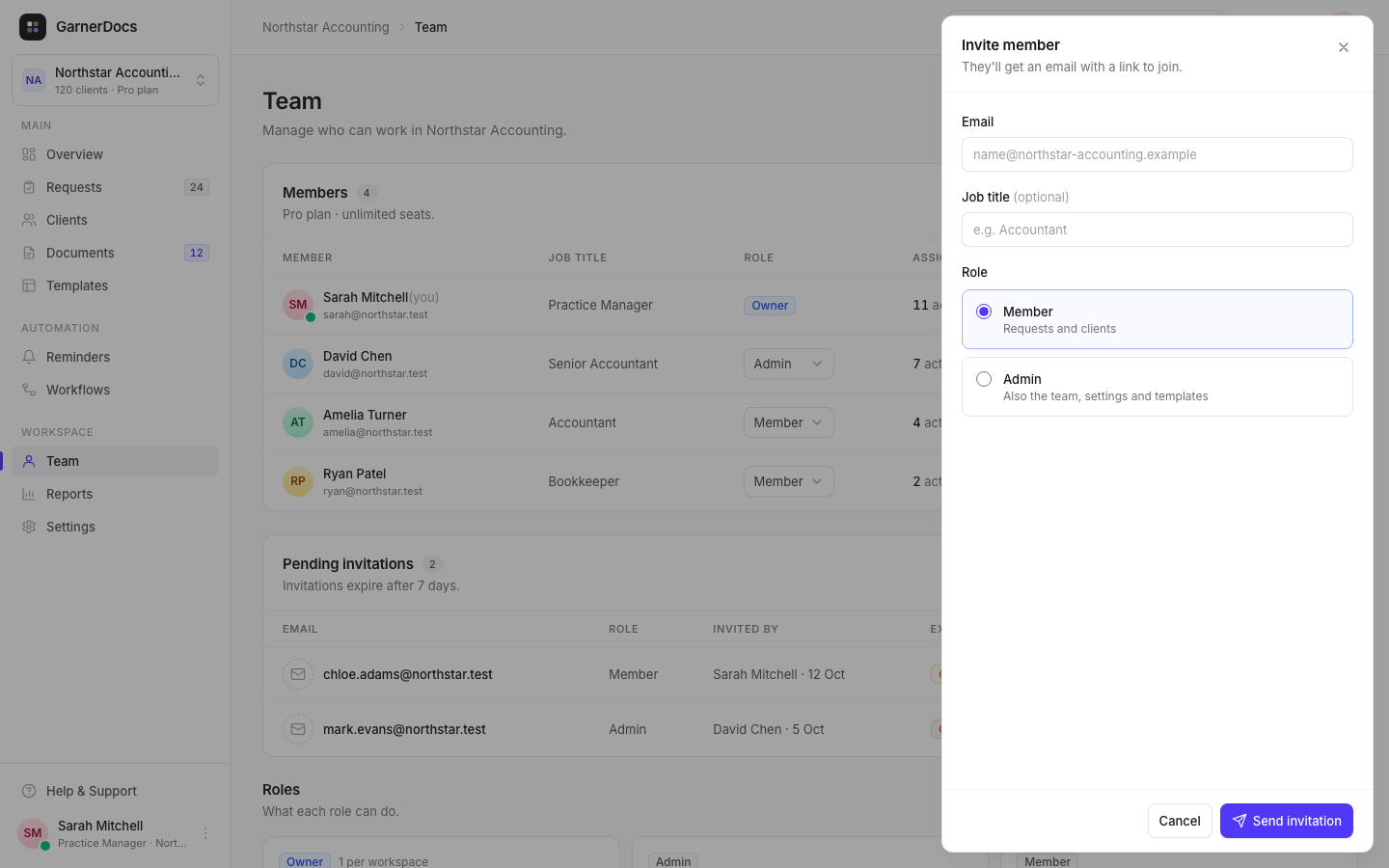
On the Team page, select Invite member, enter their email, choose Member or Admin and select Send invitation. They get an email with a link to join.
Before you start
Owners and admins only. Starter includes one seat, so you can invite people on Growth and Pro, which have unlimited seats. On Starter, the Team page shows "Invite your team on the Growth plan" instead of the button. Plans and limits
Steps
-
Open the Team page
Select Team in the sidebar, then Invite member.
-
Enter their details
Type their Email and, if you like, their Job title. It shows next to their name on the Team page.
-
Choose a role
Choose Member (requests and clients) or Admin (also the team, settings and templates). What each role can do
-
Send it
Select Send invitation. It appears under Pending invitations until they accept.
What happens next
They get an email titled "[your name] invited you to join [workspace] on GarnerDocs", with an Accept invitation button and the date the invitation expires.
- No GarnerDocs account yet: the link takes them to sign up, with their email filled in. They join your workspace instead of creating their own.
- Already have an account: they sign in and join.
They must use the address you invited. Opening the link also confirms their email address. Once they've joined, your workspace opens with the role and job title you chose.
Resend or revoke an invitation
Invitations expire after 7 days. Under Pending invitations:
- Resend emails a new link that lasts another 7 days. The old link stops working.
- Revoke cancels the invitation, and its link stops working.
Inviting the same address again updates the open invitation and resends it.
Belonging to several workspaces
One GarnerDocs account can join several workspaces, with a different role in each. Switch between them from the workspace name at the top of the sidebar (on wider screens). To start one of your own, see Create another workspace.
Good to know
- To move to Starter, your team has to fit its one seat. Remove people first.
- You can't invite someone who's already on your team.
- To make someone the owner, invite them as an admin, then transfer ownership.