Settings and branding
Add your logo and brand colour
Put your logo and colour on the client upload page and emails.
Last updated · Facts checked
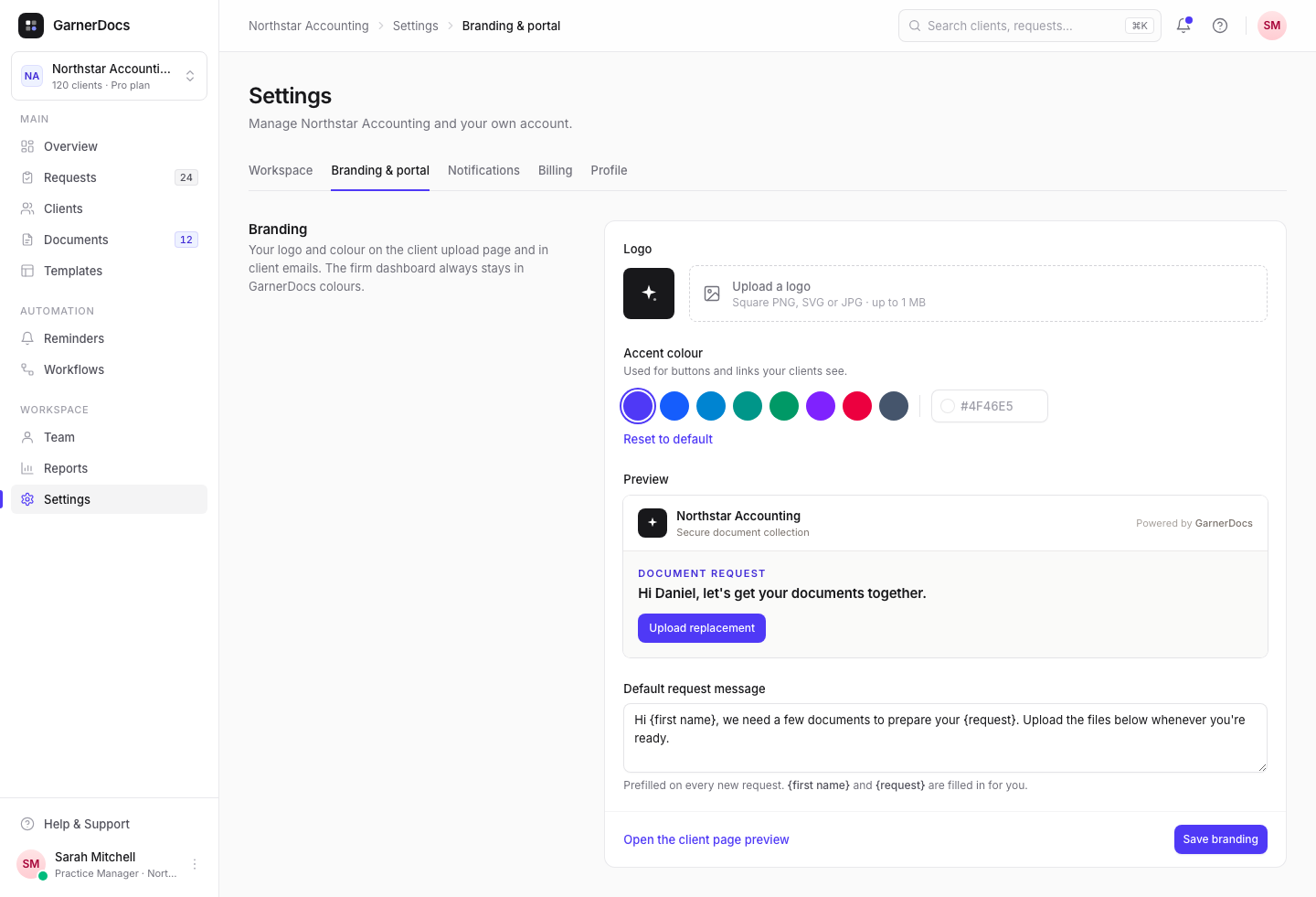
In Settings → Branding & portal, upload your logo, pick an accent colour and select Save branding. Your clients see them on their upload page and in the emails GarnerDocs sends them.
Before you start
Available on Growth and Pro, and during your free trial. Owners and admins only. On Starter, the tab shows "Brand your client page on the Growth plan" instead of the form. Plans and limits
Steps
-
Open the tab
Select Settings in the sidebar, then the Branding & portal tab.
-
Upload your logo
Select Upload a logo and choose a square PNG, SVG or JPG of 1 MB or less. It's shown cropped to a square, so a square image looks best.
-
Choose an accent colour
Pick one of the swatches, or type a hex colour such as
#4F46E5in the box next to them. Reset to default goes back to indigo. -
Check the preview
The Preview shows the top of your client's upload page with your logo, your workspace name and a button in your colour.
-
Save
Select Save branding.
What changes, and what doesn't
Your logo and colour appear on:
- the client upload page, for every request, including ones you've already sent
- emails to clients: the request email, reminders, replacement requests and the completion email
The accent colour is used for buttons and links your clients see. Your own GarnerDocs dashboard always stays in GarnerDocs colours.
To see the real page, select Open the client page preview. It opens your most recently sent request as your client sees it. The link only appears once you've sent a request.
Good to know
- Too light? A custom colour must be dark enough for white button text to be readable. If it isn't, you'll see "This colour is too light for white text on buttons. Choose a darker shade."
- SVG logos can't contain scripts. If yours does, export it again without them or upload a PNG.
- Remove logo takes your logo off. Your clients then see a plain icon next to your workspace name.
- If you move to Starter, the upload page and client emails go back to the default look. Your logo and colour are kept and return if you upgrade again.