Settings and branding
Choose which emails you get
New uploads, client notes, completed requests and file retention.
Last updated · Facts checked
In Settings → Notifications, choose which emails you get about your requests. Each change saves straight away, and it only affects you, not the rest of your team.
Who gets notified
Emails about a request go to the person it's assigned to. If nobody is assigned, they go to every owner and admin. You're never told about something you did yourself, such as marking a request complete.
In-app notifications under the bell are always on. These settings only decide which of them also arrive by email.
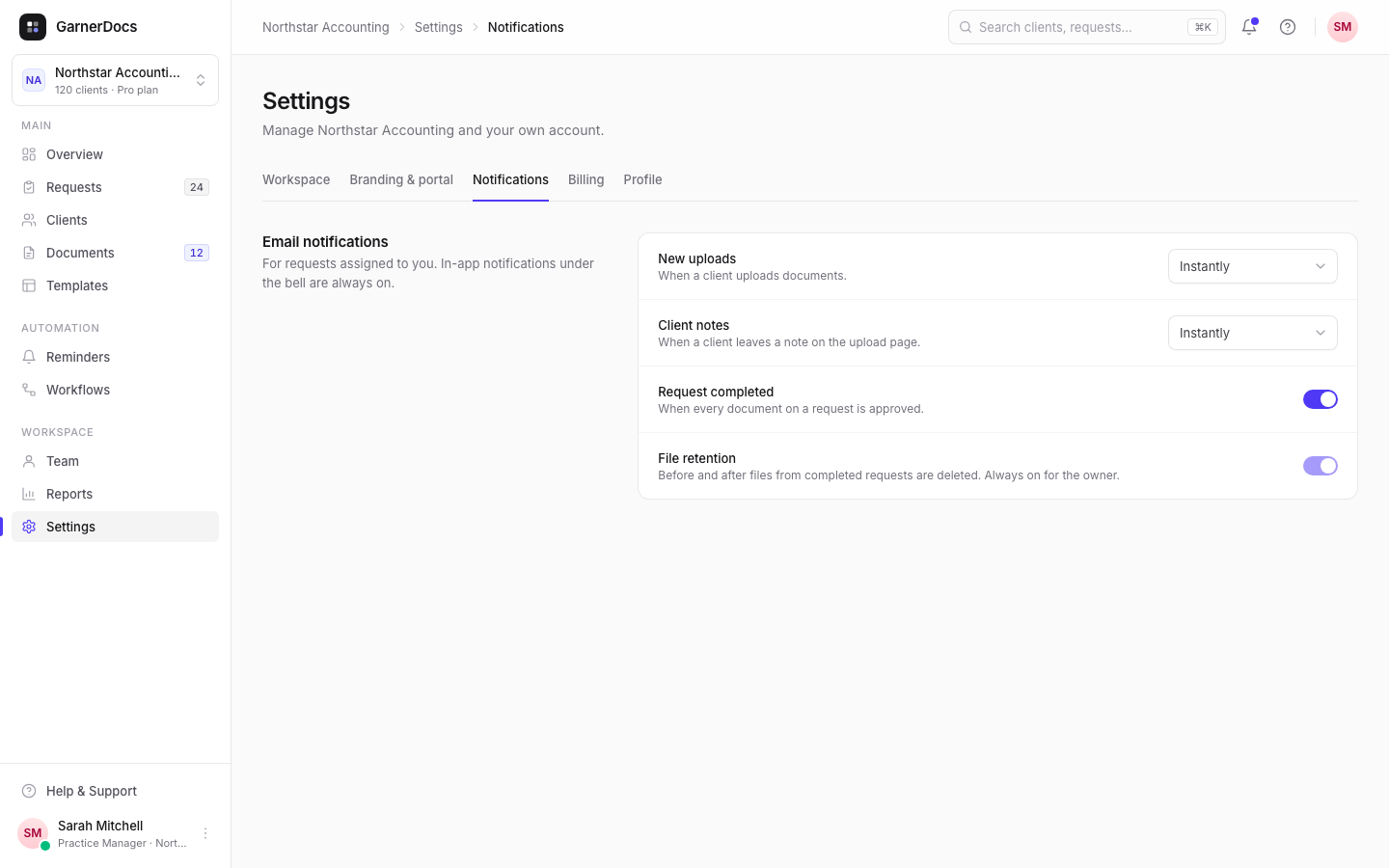
The settings
| Setting | When it emails you | Choices |
|---|---|---|
| New uploads | When a client uploads documents. | Instantly, Daily digest or Off |
| Client notes | When a client leaves a note on the upload page. | Instantly or Off |
| Request completed | When a request is completed, including when its last document is approved. | On or off |
| File retention | Before and after files from completed requests are deleted. | On or off (owners and admins only) |
Everything starts switched on, with new uploads set to Instantly.
New uploads: instantly or once a day
- Instantly waits a couple of minutes after a client's last upload, then sends one email listing everything they added. A client uploading ten files in a row means one email, not ten.
- Daily digest sends one email at 08:00 in your workspace's time zone, listing the uploads from the last day.
- Off sends no upload emails. New uploads still show under the bell.
File retention emails
Only owners and admins see this setting. The owner always gets these emails, so the switch is on and can't be changed. Admins can turn them off. Members never get them. Deletion warnings explains when they're sent.
Good to know
- Workflow emails follow these settings too: upload alerts are skipped when New uploads is Off, and completion alerts when Request completed is off. You still get the in-app notification.
- The time zone for the daily digest is set in Settings → Workspace.
- Emails to your clients aren't affected. Those are controlled by your reminder schedule.
Related articles
- Workspace name, time zone and defaults
- Deletion warning emails
- Workflows that run when something happens
- Assign a request to a teammate