Settings and branding
Workspace name, time zone and defaults
Your firm's name, time zone, default due date and contact details.
Last updated · Facts checked
Settings → Workspace holds your firm's name, time zone, default due date and file retention period, the contact details your clients see, whether clients are asked for a PIN by default, and whether your team must use two-factor authentication. Change what you need and select Save changes under that card.
Before you start
Owners and admins only. Members can open the tab and see these settings, but can't change them.
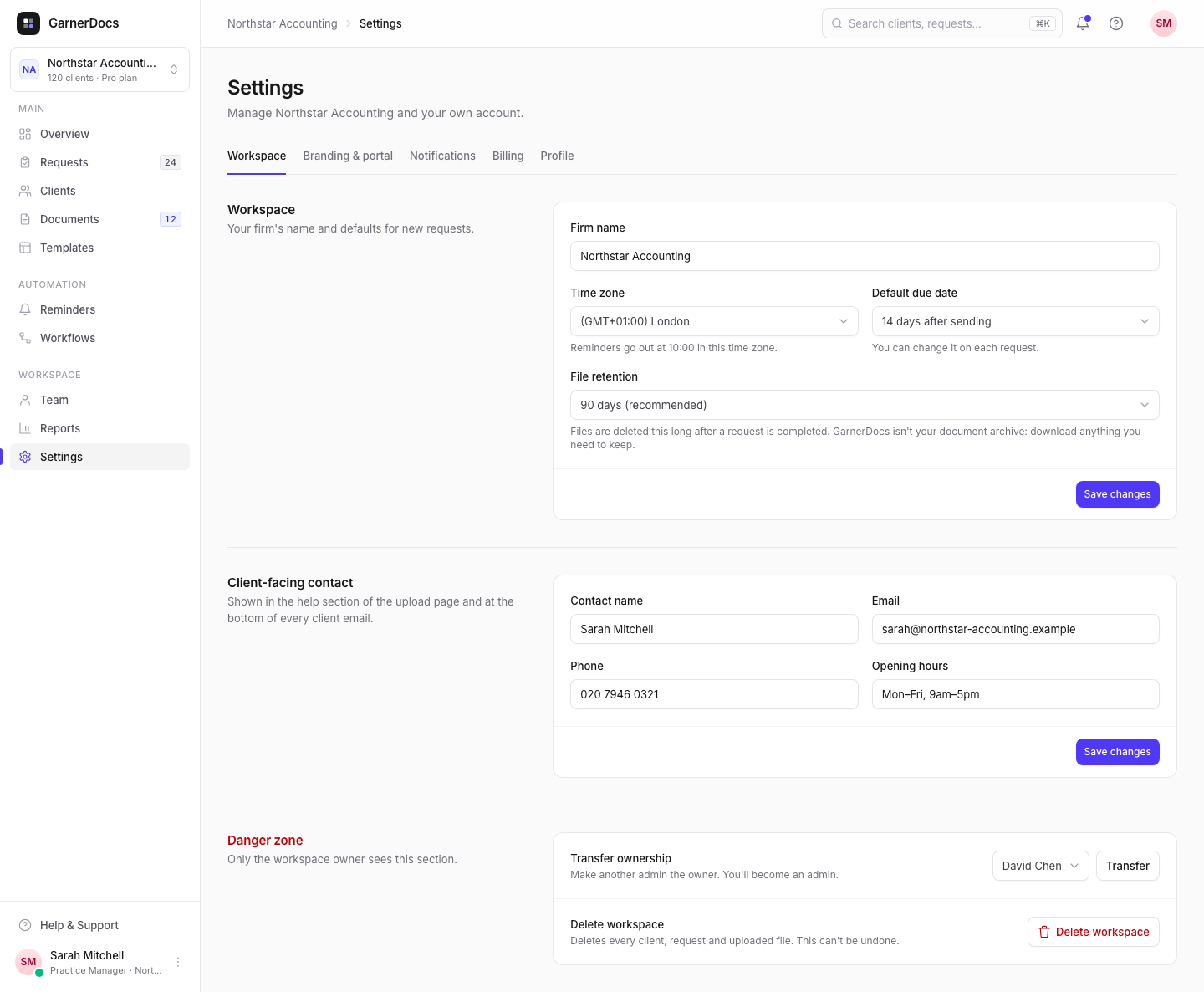
The Workspace card
- Firm name: shown in the sidebar, on your client's upload page and in the emails they get, which come from "[Firm name] via GarnerDocs".
- Time zone: see below. New workspaces start on London time, so check it if you're elsewhere.
- Default due date: 7, 14, 21 or 30 days after sending. It's 14 days to begin with. Each new request starts with this due date, and you can change it on the request. Due dates and overdue requests
- Ask for a PIN by default: a client's link gets a PIN when it's created, and requests sent with their own link start with Protect with a PIN ticked. You can still remove a PIN later. Protect a request with a PIN
- File retention: how long files are kept after a request is completed: 30 days, 90 days (recommended), 180 days or 1 year. Requests can't be sent until an owner or admin has confirmed it. Confirm how long files are kept
What the time zone affects
GarnerDocs uses your workspace's time zone, not each person's computer, for:
- Reminders: sent at 10:00. How automatic reminders work
- Recurring workflows: run at 08:00. Set up recurring document collection
- The daily digest of new uploads: sent at 08:00. Choose which emails you get
- "Today": when a request becomes overdue, labels like "In 6 days" or "5 days overdue", and the dates shown across the app and in emails.
When you change the time zone, reminders that haven't gone out yet move to 10:00 in the new one.
The Client-facing contact card
Contact name, Email, Phone and Opening hours appear in the help section of your client's upload page and at the bottom of every client email. All four are optional. If Email is empty, the upload page shows the email of the person the request is assigned to.
Require two-factor authentication
Two-factor authentication asks for a code from an authenticator app as well as the password when someone signs in. Each person can turn it on for their own account, and you can make it compulsory for the whole team. The card shows how many people have it on.
-
Turn it on for yourself
You need it on your own account first, so you can't lock yourself out. Turn on two-factor authentication
-
Require it
In Settings → Workspace, find Two-factor authentication, select Require and confirm.
Anyone who doesn't have it on yet is taken to their profile the next time they open the workspace, and can't use it until they've set it up. New team members are asked to set it up when they join. While it's required, nobody on the team can turn it off.
To stop requiring it, select Stop requiring. People who have it on keep it on. Turning it on or off is recorded in the activity history.
Good to know
- Each card saves on its own, so select Save changes on the card you edited.
- The Danger zone at the bottom is only shown to the owner. It's where you transfer ownership or delete the workspace.
- Shortening the retention period never deletes files with less than 14 days' notice. How long files are kept