Reminders
Change your reminder schedule
Change the days, add or remove reminders, and preview the emails.
Last updated · Facts checked
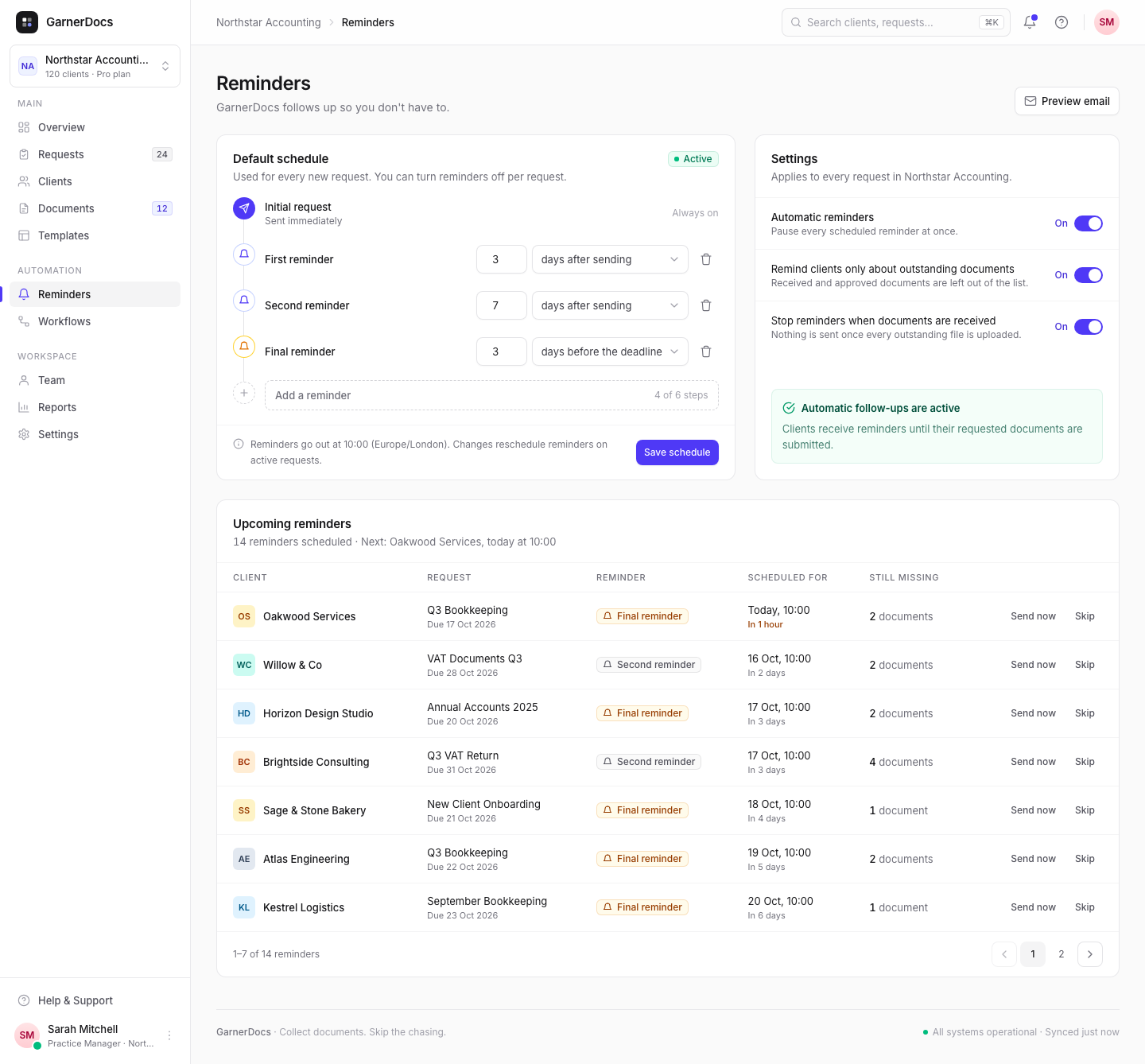
On the Reminders page, change the days on each step, add or remove reminders, then select Save schedule. The schedule applies to every request in your workspace.
Before you start
Only owners and admins can change the schedule. Custom schedules are available on Growth and Pro. On Starter, every request uses the default schedule. Plans and limits
Steps
-
Open Reminders
Select Reminders in the sidebar, under Automation.
-
Change a step
Under Default schedule, type a number of days (1 to 60) and choose days after sending or days before the deadline.
-
Add or remove reminders
Select Add a reminder to add a step 3 days after the last one counted from sending. A schedule can have up to 6 steps, including the initial request. The counter shows how many you've used, for example "4 of 6 steps". Select the bin icon to remove a step.
-
Save
Select Save schedule. You'll see "Schedule saved".
Step types
| Step | When it goes out |
|---|---|
| Initial request | As soon as you send the request. It's always first and can't be removed. |
| days after sending | That many days after the day you sent the request, at 10:00. Left out if it would land after the due date. |
| days before the deadline | That many days before the due date, at 10:00. Sent as the final reminder, which names the due date. |
After you save, steps counted from sending come first, soonest first, followed by steps before the deadline. Every step before the deadline is labelled Final reminder. Reminders go out at 10:00 in your workspace's time zone, shown under the schedule.
Requests you've already sent
Saving the schedule reschedules the reminders still to come on every active request that has reminders on, using each request's send date and due date:
- Reminders already sent or skipped stay as they are.
- A new step whose date has already passed isn't sent.
- Drafts use the new schedule when you send them.
Preview the emails
Select Preview email at the top of the page to see a reminder as your client receives it, with sample data and your workspace's name, logo and brand colour. Use the menu to switch between Reminder, Final reminder, Invitation and Replacement requested. To get one in your inbox, see Send yourself a test reminder.
Good to know
- Two reminders can't be set for the same day. You'll see "Two reminders are set for the same day. Change or remove one."
- The Settings switches beside the schedule (pausing reminders, listing only outstanding documents, stopping when documents are received) work on every plan. Owners and admins change them.
- To turn reminders off for one request, use its Automatic reminders switch in Edit details.
Related articles
- How automatic reminders work
- Send yourself a test reminder
- Plans and limits
- Workspace name, time zone and defaults