Requests
Add, remove or rename requested documents
Edit a request's checklist, before or after you send it.
Last updated · Facts checked
Open the request, select Edit checklist, make your changes and select Save changes.
Drafts and active requests can be edited. Completed and cancelled requests can't.
Steps
-
Open the checklist
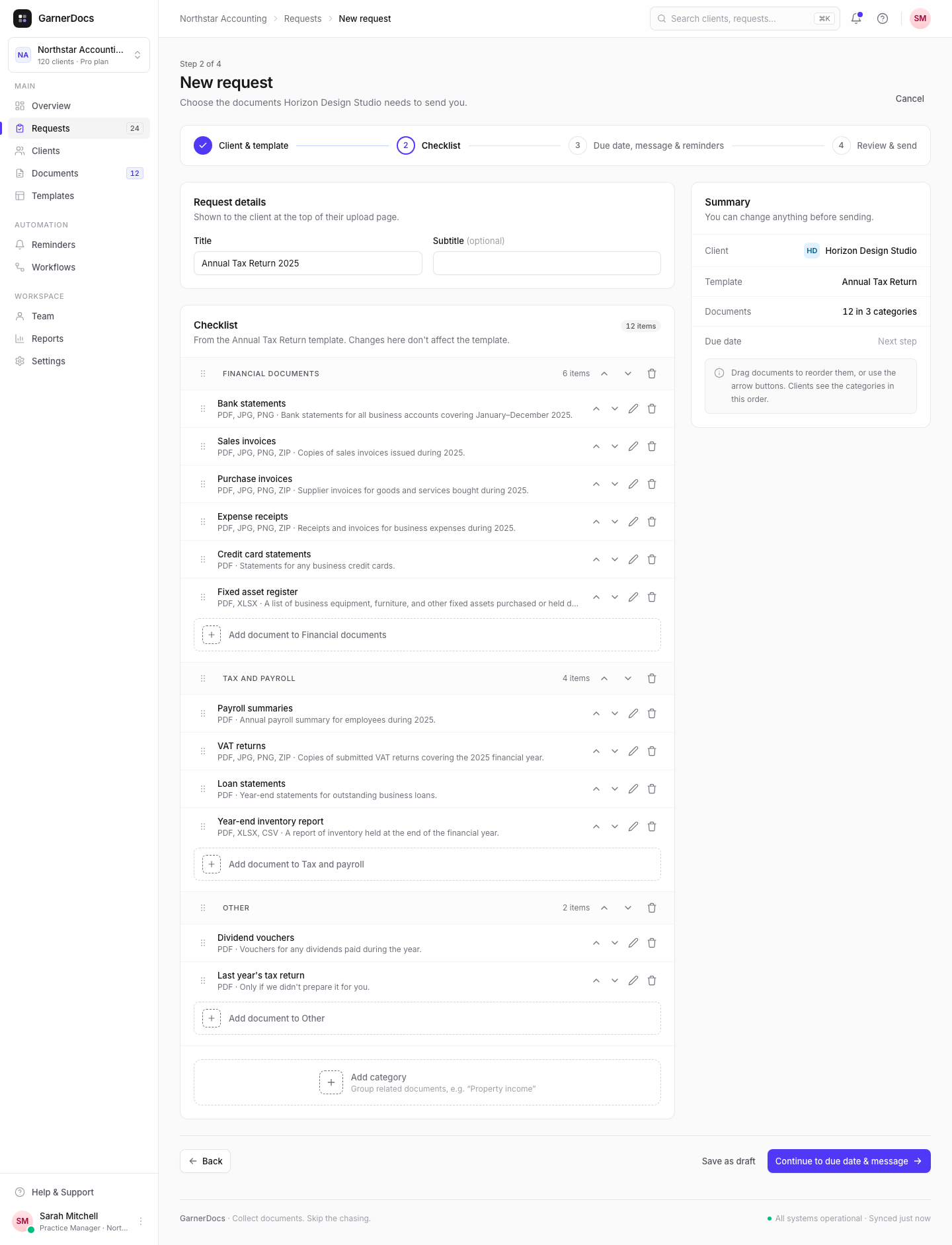
On the request page, select Edit checklist on the Requested documents card, or choose it from the ⋯ menu.
-
Rename or change a document
Select the pencil next to a document. Change the Document name, the Description (the client sees it under the name) or the Accepted file types, then select Done.
-
Add a document
Select Add document to under the category it belongs in. To ask for one line of text instead of a file, set its type to Short answer. See Ask for a short answer.
-
Remove a document
Select the bin icon next to it.
-
Save
Select Save changes.
Categories
Documents sit in categories, such as "Financial documents". Use Add category to start a new group. Drag documents and categories to reorder them, or use the arrow buttons: clients see the categories in this order. Removing a category removes its documents too, after you confirm.
File types and size
Each document accepts the file types you tick: PDF, JPG, PNG, ZIP, XLSX, CSV, DOCX or HEIC. Every file can be up to 25 MB, and the client sees "Up to 25 MB per file" next to the document. You can't change that limit in the editor.
Editing after you've sent it
- Documents you keep hold on to their files and status.
- Your client sees the updated checklist the next time they open their link.
- When you add documents, Notify (with your client's name) is ticked. It emails your client the request again, listing the whole checklist.
- If you remove a document the client already uploaded files for, GarnerDocs asks first. Remove and save deletes those files.
- Changes here don't change the template the request started from.