Requests
Create a request
Work through the four steps of New request, then send it or save it as a draft.
Last updated · Facts checked
Select New request on the Requests page, work through the four steps, then send it to your client or save it as a draft.
Before you start
A workspace owner or admin has to confirm how long GarnerDocs keeps uploaded files before anyone can send a request. You can still save drafts until then. Confirm your retention period
Steps
-
Client & template
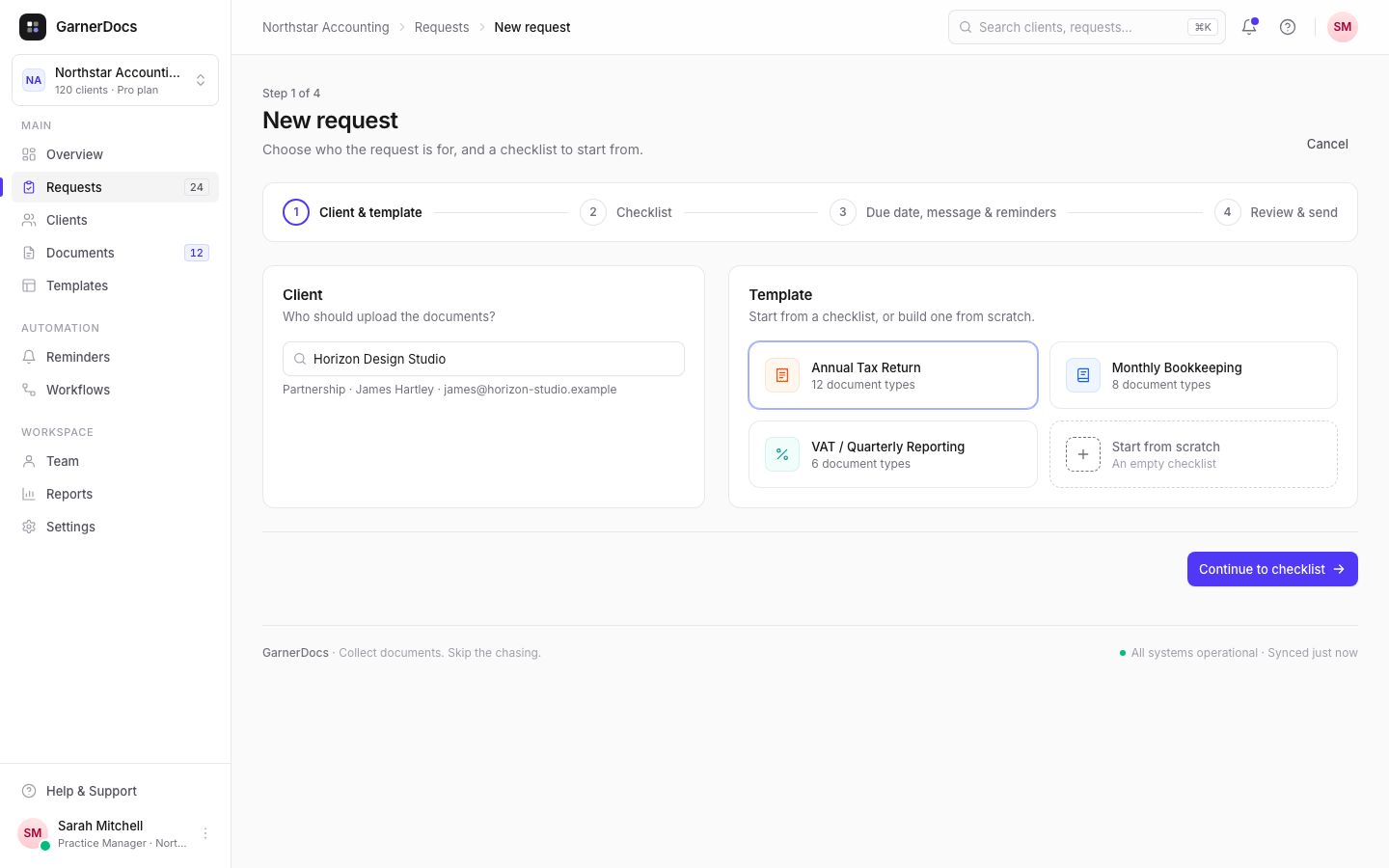
Search for a client, or add a new one with their name, type, contact name and email. Then pick a template, or Start from scratch for an empty checklist. Select Continue to checklist.
-
Checklist
Give the request a Title, which the client sees at the top of their upload page, and an optional Subtitle. A template fills in the documents and a title such as "Annual Tax Return 2026". Add, remove or reorder documents for this client. Set an item to Short answer to ask for a fact, such as a date of birth, as one line of text. See Ask for a short answer. Select Continue to due date & message.
-
Due date, message & reminders
Set the Due date, choose who it's Assigned to (you, unless you change it) and edit the Message to client, which starts from your default request message. Leave Automatic reminders on to use your workspace schedule. Under Client access, tick Send with its own link only if someone else at your client handles this request. Select Continue to review.
-
Review & send
Check the summary and the invitation email preview, then select Send request.
If something's missing
Each Continue checks the steps so far, and nothing is saved until you save or send. If a field needs fixing, the wizard goes back to that step and tells you what's wrong, for example "Give this request a title", "Choose at least one file type" or "Choose a due date from tomorrow onwards".
Client link or its own link
Your client opens the request from their client link, a private page with all their requests from you. New requests show up there, so they keep one link.
Tick Send with its own link when someone else handles this request, such as a colleague of your client or a family member:
- The emails link to this request only.
- The request isn't listed on the client's page with their other requests.
- You can't change this once the request is sent. If you picked the wrong one, cancel the request and send it again.
Protect it with a PIN
A PIN on the client link covers this request, so you add it from the client's page. For a request you send with its own link, tick Protect with a PIN under Send with its own link instead. Either way GarnerDocs makes the PIN, and you give it to your client by phone or text, never by email. Protect a request with a PIN
Save as draft or send
Save as draft appears from the second step onwards. A draft doesn't need a due date, and your client sees nothing until you open the request and select Send request.
Sending needs a due date from tomorrow onwards, at least one document and a free active request on your plan. GarnerDocs then emails your client a link to the request on their client link, or its own link if you chose that, and schedules the reminders.
When your plan is full
Drafts don't count towards your plan's active requests. If every active request is in use, sending shows Send more requests on a bigger plan with the message "You've reached your plan's … active requests. Complete or cancel one, or upgrade for more." The request isn't saved, so select Save as draft to keep it. See Plans and limits.
Request statuses
Each request on the Requests page has one of these badges.
| Status | What it means |
|---|---|
| Completed | Someone on your team marked the request complete, or every document on it has been approved. |
| Awaiting Client | The request was sent and the client hasn't uploaded anything yet. It stays this way after the due date passes. |
| Overdue | The due date has passed, the client has uploaded something, and not every document is approved yet. |
| Due Soon | The due date is today or in the next 3 days, and the client has uploaded something. |
| In Review | At least one uploaded file is waiting for you to review it, and the request isn't overdue or due soon. |
| In Progress | The client has started uploading, nothing is waiting for review, and the due date is more than 3 days away (or there isn't one). |
| Draft | Saved but not sent. The client hasn't been emailed and their link doesn't work yet. |
| Cancelled | Cancelled by your team. The client link stopped working and no more reminders go out. |
Related articles
- Add, remove or rename requested documents
- Due dates and overdue requests
- Copy or share the client link